🐦 Volery · Get started

Your first five minutes with Scout.

Volery runs a real AI model on your phone — private, offline, no account. This is the short path from a fresh install to your first answer.

💡

One thing to know first: Volery ships without a model inside it (that keeps the app small). Scout can't answer until you download one — once. Most of this guide is that download. After it, Scout just works, offline, forever.

Two ways in

Which path is for you?

Volery works two ways — pick one, or use both. Scout runs on your phone; Sage plugs in a cloud model you bring.

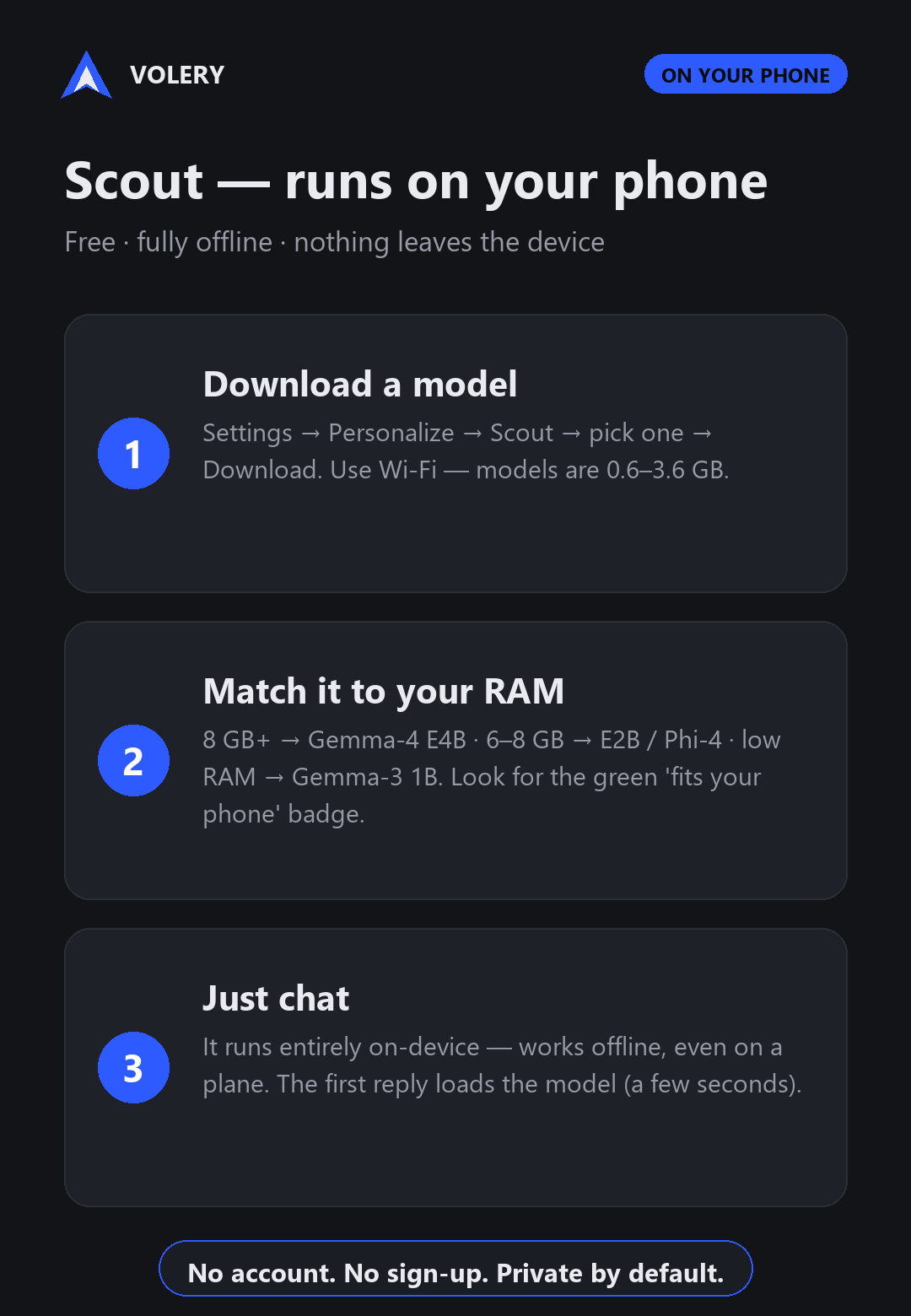
Scout setup in three steps: download a model, match it to your phone's RAM, then chat offline.
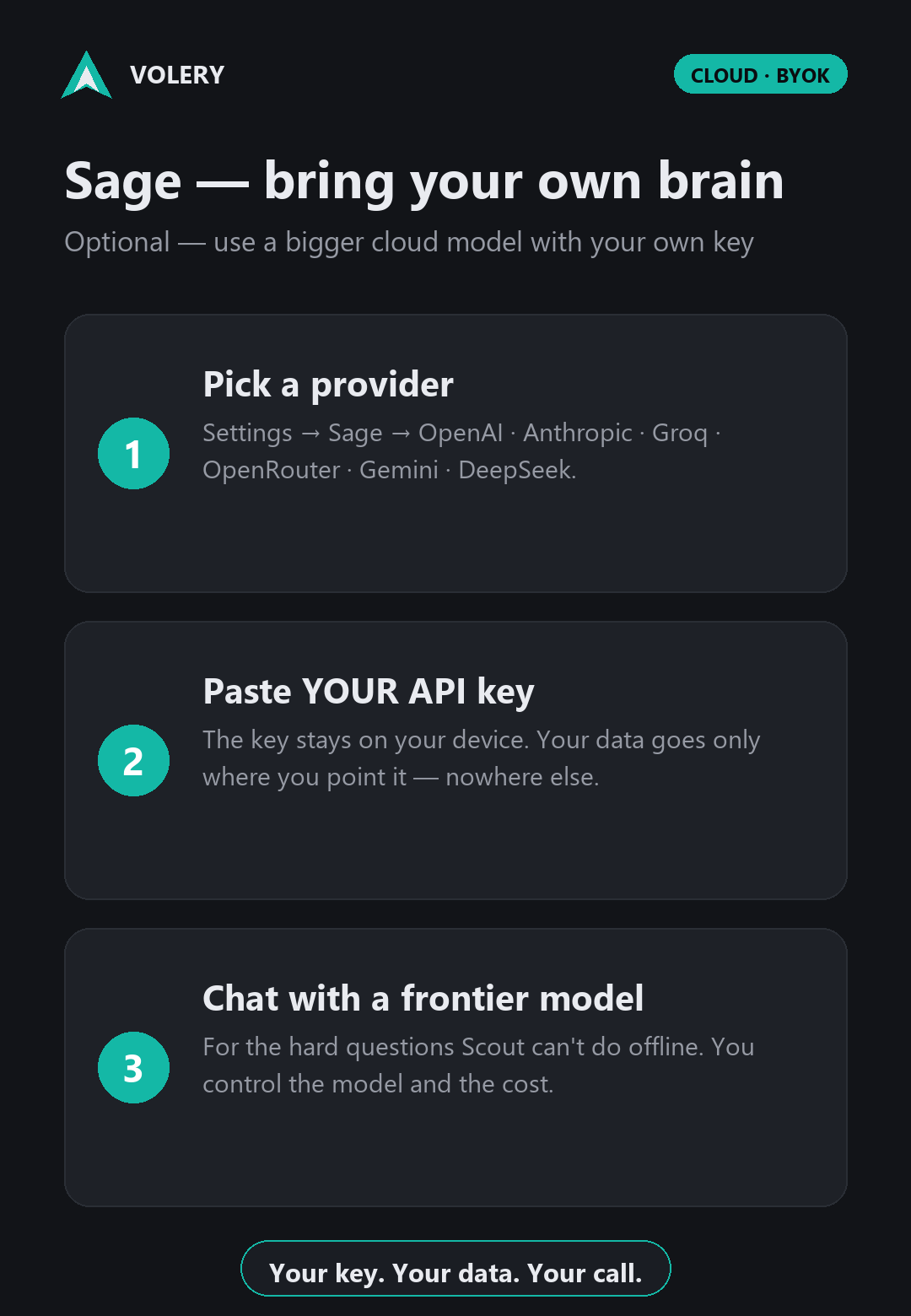
Sage setup in three steps: pick a provider, paste your own API key, then chat with a frontier model.
Before you start

Will it run on your phone?

Scout runs the model on your device, so it needs a reasonably modern phone. You don't have to work this out yourself — Volery checks your phone and tells you exactly what it can run.

📱 What Scout needs

A 64-bit (arm64) Android phone on Android 8.0+, roughly 6 GB of RAM or more, and 2–4 GB free storage for the model. More RAM means bigger, smarter models — 8 GB is comfortable, 11 GB+ runs the best model on the GPU.

🔎 Let the app decide

In Settings ▸ Scout, the “This device” card gives a plain verdict for your phone — and every model in the list gets a fit badge calculated for your RAM. On a smaller phone you can still use Sage, a cloud model you bring.

The setup · about 5 minutes

Get Scout running, in three steps

01

Open Volery and meet Scout

A short welcome tour introduces the flock — 🐦 Scout (on your phone), ☁️ Sage (a cloud model you bring), and the privacy promise. Tap through it or Skip. You land in the chat on the Scout lane.

on screen · “Ask Volery anything” with a few starter prompts

Type a message now and Scout will say it can't start yet — that's expected. It needs a model. Let's get one.

02

Download a model — the one-time part

  1. Tap the gear ⚙ (top-right) → open the 🐦 Scout tab.
  2. Under Model, tap “Browse models.” Each row shows its size, a RAM estimate, and a fit badge for your phone.
  3. Pick the largest model showing a ✅, then tap Download (2–4 GB — use Wi‑Fi). Volery double-checks before loading anything too big.
  4. When it finishes — “Installed ✓ and set active” — you're done. You never do this again.
on screen · “…52% (1.2 GB)”“Installed ✓ and set active”
ModelSizeGood forSees imagesFits a phone with
Gemma‑4 E4B 3.4 GB Best quality — the default yes 11 GB+ RAM
Gemma‑4 E2B 2.4 GB Lighter, still sees images yes 7 GB+ RAM
Phi‑4 mini 3.6 GB Strongest reasoning text only 7 GB+ RAM
Qwen2.5 1.5B 1.5 GB Compact all‑rounder text only 5–6 GB RAM
Gemma 3 1B 0.6 GB Fastest, lowest RAM text only 5–6 GB RAM

Not sure? Trust the ✅/⚠️/❌ badge next to each model — it's worked out for your phone. Want Scout to understand photos and screenshots? Pick a Gemma‑4 model.

03

Say hello

Back in the chat, type anything — or tap a starter like “Explain like I'm five.” The first message loads the model into memory; after that, replies are quick.

on screen · “Scout is waking up… (first load can take a minute)”

🎉 That's Scout. It's now running entirely on your phone — turn off Wi‑Fi and mobile data and it still answers. No account, nothing sent anywhere.

The flock

Three lanes, one chat

Switch between them with the chips at the top of the chat. Keep all three set up and pick per message.

🐦

Scout

on your phone

Free, offline, private, no account. Runs the model you downloaded. Always there. Start here.

☁️

Sage

a cloud model you bring

Want a bigger brain? Plug in your own provider — OpenAI, Claude, Groq, Gemini, or your own computer. Your key, your data path.

🕊️

Dove

the hive · advanced

Memory and tools on your own server. For the sideloaded owner build — hidden on the Play version.

Once Scout's running

What it can do

🧰 Tools it can use

Turn tools on from the chat's tool tray. Scout handles them on the phone — and anything that acts is pre‑filled for you to confirm, never sent on its own.

calculatormaps directions calendarcontacts alarms & timerdraft email / SMS callnotestime

🎙️ Voice notes → reports

Hold to record a lecture or meeting; Scout turns the transcript into a clean, structured report — on your phone. Or just tap the mic to dictate a message.

🌐 Reach the web (optional)

Add connector tools when you want them: Wikipedia, read‑a‑link and crypto need no key; web search, weather and news take a free key you paste in.

🎨 Make it yours

Rename Scout, give it a persona and an “about you”, switch theme and accent, pick an appearance preset, text size and font. It answers the way you like.

🔒

Private by design. Scout runs 100% on your phone; your messages and your tools' data — calendar, contacts, location, notes, voice — stay on the device. The only thing that ever leaves is what you explicitly send to your own Sage provider.